Posts

Keep student projects on track with Planner

Image
Student projects can be messy and complex which can make it difficult for students and teachers to keep track of what has, and has not been completed. Within Office 365 an app called Planner  enables users can create 'buckets' (which could be like phases of a project) and within each bucket users can create Tasks (which are like smaller activities) within each phase.  Tasks can be assigned to specific people and can have a due date for completion. When tasks are complete, they move to the completed tasks area enabling users to see progress. Plans can be easily copied so a teacher can create a template plan which can be easily shared with all members of the class.  Planner can be found in the Office 365 All apps.  If you would like to learn more about using Planner see the eLearning Leader, or there is more information here.

Reach different levels of learning via Screen Recorder

Image
When students are working at different levels of learning, it may be useful to create a screen recording. This could be a micro lesson for a small group of students, a flipped learning concept for students to learn before class or a lesson recap. The new Screen recorder in Stream is perfect for this and enables a "picture in picture" option too.   Step 1: Go to the Hagley Portal and select Office 365 Portal: Step 2: Select Stream . Stream is like YouTube but only accessible for students and staff at Hagley College. This is a perfect place to host video clips.   If Stream does not appear in your list, you will need to select all apps . Step 3:  Once Stream has opened, select Record Screen from the Create menu.  Step 4: This enables the screen recording feature. If you want your recording to include you as well as your screen, ensure the webcam image (bottom left) is selected. Click the Start recording button and select which part of the screen you want to capt...

How can I use Technology to support my teaching, learning and work at school?

Image
Use the full benefits of technology to reduce workload when we return to school.  In class:  Students will be working at different stages of learning and there are many ways which technology can support this:  Use a screen cast to provide instructions/recap of learning.  Use a collaborative space for students to learn online together. Use assignments in Teams to enable students have one key space which you can provide formative feedback. Use class notebook to distribute the key points of information to all students each lesson   Interaction with teachers and students: There are many features in Microsoft Teams which are designed to make our working lives easier. Use email less. Use email for a formal, non-collaborative message to people inside or outside Hagley College.   Use Chat messages for collaborative, short and informal interactions with one or a few teachers within Hagley College.  Use the Calendar in Teams or Outlook to schedule ...

Top tips for Leaders when conducting video calls

Image
Before conducting a video call remember that many people are experiencing major disruption to their lives and some are under significant stress, so plan your video call accordingly. Limit video calls to those which are necessary. Create the meeting and always include an agenda in the meeting description. Begin the video call 5mins before the scheduled start time. Use the background blur feature. This puts you in focus and conceals everything behind you. Ideally natural or artificial light is in front of you or beside you when you are conducting a video call. Welcome everyone as they join the video call and ask about their well-being. Try to get everyone to speak as they join as this may also encourage further participation later when you need it. Tell people that it is optional whether they have their video camera on or not. Put a message in the meeting chat to encourage people to use this space if they have a question or information to share. Mention the Mee...

Using Video call Breakout Rooms for Group Discussions in Teams

Image
When conducting video calls with your class, it's important for students to be actively involved with their learning rather than passively listening and watching. One way to achieve this is for students to have breakout discussions within a private channel of your class Team. Before creating a breakout discussion, set up private channels within the class Team.  Click here to create private class channels. Once the private channels have been created, the teacher can create a video call within each private channel for the students to join. This way students are able to have their own small group video call away from the main class video call. This acts similarly to a table discussion in a face-to-face classroom. When you are ready for a small group video call,  go to each of the private channels and click the  Meet Now  video camera icon in Posts : This will create a video call which is only accessible for students who have been added to this private channel...

Group Work: Creating Private Channels in Teams

Image
When conducting Video Calls with your class, it is important for students to be actively involved with their learning rather than passively listening and watching. One way to achieve this is via using the Breakout Rooms in Video Call. To create a breakout room click the icon in the toolbar:  Select the number of breakout rooms you need: This will assign students in to groups. Once the students are in groups, as the organiser, As the organizer you have an option to join any room you like: Get everyone to return to the main meeting s elect Close rooms.   You'll know rooms have successfully closed when their status changes to Closed.  When everyone is back from their breakout rooms and you're ready to meet as a larger group again, select Resume.  There is more information about breakout rooms here . 

Getting the best out of OneNote Class Notebook

Image
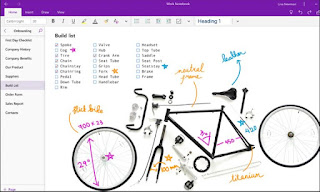
Whether you are using OneNote Class Notebook individually or as part of your class Team, there are a few tips and tricks to ensure you notebook runs smoothly.  Create content directly on page  - Type or copy and paste material directly onto a Class Notebook page.  Insert a link to files  – If you cannot create the content directly in a page, upload your files to the Class Materials folder in Files in the class Team. Or upload the file to your OneDrive and share the link to the file. Dragging or inserting files in to the Notebook is not recommended. Embed YouTube, Sway or Stream video  - Select insert online video and chose embed Sway or Stream video so students can easily access them. Use the Content Library  --Use the Content Library in your Class Notebook for reference material for students rather than distributing an individual page to each student. Distribution is great for pages that you want students to edi...

How do I ensure I don't miss anything in my Class Team?

Image
By default, channel mentions are turned off and all new posts will only show in the Activity feed : In order to keep immediately up to date with what is happening in your class Team you can alter notifications: Go to the class Team and click on the General Channel and select the three dots and Channel notifications : Select Banner and Feed if you would like the notifications to appear in your Desktop Banner too: 

How might remote learning look for my class?

Image
Remote learning is not the same as face -to-face learning so don't try to replicate what you do in your usual classroom teaching time. "The number one goal of schooling currently is to nurture wellbeing." Perry Rush, President, New Zealand Principals' Federation Set clear and consistent expectations with how (probably Microsoft Teams) and when (during school hours if possible) you will communicate with your students. Let parents know how you will be operating your class and encourage them to be involved in their child's learning if they are able to. Structure your lesson in a 3 phase format: Before lesson learning, video call and independent work. Phase 1: Before the lesson:   Create activities for students to complete which will introduce them to what you are going to discuss in your video call. This might be a reading, a video clip which you have created , or activities from Education Perfect . These activities might take the stude...

What is Teams and how can I use it with my class?

Image
Microsoft Teams is a one-stop learning platform for your class. All classes at Hagley College have a Team already created for them - so there is no need to invite or ask students to sign up to your Team. However, you will need to activate it when you set it up for the first time.   There are four main areas in Teams: Posts, Files, Class Notebook, and Assignments . Posts is like a news feed for your class. Teachers and students can post and reply to messages. To create a post click on the New conversation area at the bottom of the page: Click return or the dart image to post the conversation to Posts. For more information about creating posts and announcements in Posts click here . To set the Posts tab as read-only for students  click here . Files is the class storage location for files. Use the Class Materials folder for files that you want to be 'read only' to students. For more information about using Files click here . The  Class Notebook ...